Browsers and Windows sometimes stop installer files before they download or run.
That can be frustrating, but it is usually a safety checkpoint, not the end of the road.
Quick version
If you intentionally downloaded Debt Blaster from our website or from your purchase email,
your browser or Windows may still ask you to confirm the download or install.
Make sure you requested the download.
Make sure the link came from Debt Blaster, ZilchWorks, or your FastSpring purchase email.
Open your browser Downloads list with Ctrl + J.
If the download did not start, right-click the download link and choose Save link as.
If Edge or Chrome asks whether to keep the file, choose Keep only if you trust the source.
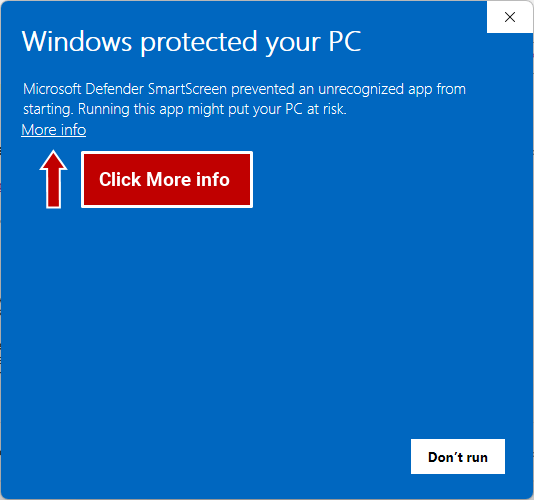
If Windows says Windows protected your PC, click More info, then Run anyway only if the installer is the one you expected.
If this is a work, school, or government computer, you may need help from your IT department.
Do not turn off your antivirus or ignore a malware warning.
When in doubt, stop and email
debtblaster@zilchworks.com.
Show full step-by-step details
A Windows installer often ends with .exe.
Because an installer can change files on your computer, browsers and Windows may ask
you to confirm that you really want it. That warning is useful. Treat it like a checkpoint.
Continue only if these are true
You intentionally requested the download.
You clicked the download link yourself.
You are on the official website for the software, or you are using the purchase email you expected to receive.
The email came from the software company, ZilchWorks, FastSpring, or another authorized order processor connected to your purchase.
The file name looks like the installer you expected.
The browser address starts with https:// when a website opens.
You trust the software company or publisher.
Stop if any of these are true
The download came from an ad, pop-up, unknown email, or random software site.
You did not ask for the download.
The email is not connected to an order you placed.
The email was forwarded by someone you do not know.
The file name looks strange or does not match the software.
Your antivirus says it found a virus, malware, or trojan.
You are not sure where the file came from.
If your download link came by email
Some software companies send the download link in a purchase email instead of placing
the installer directly on a public web page. That is normal. For example, a purchase
email may come from the software company or from an authorized order processor such as FastSpring.
Open the purchase email you received after buying the software.
Confirm that the email is connected to the order you placed.
Look for the download link in that email.
Click the link once and wait for your browser to respond.
If nothing appears to happen, press Ctrl + J to open your browser Downloads list.
If the download still does not start, go back to the email, right-click the download link, and choose Save link as.
Only use a download link from a purchase email you expected to receive.
Do not use download links from forwarded messages, unknown senders, ads,
pop-ups, or unrelated emails.
1
Open your browser Downloads list
Most browsers show recent downloads in the upper-right corner of the browser window.
You can also press Ctrl + J to open the Downloads page.
Look for the installer file you expected. The file will usually end with
.exe.
2
Try "Save link as"
If clicking the download link does not start the download, try saving the installer directly.
Go back to the web page or purchase email that has the download link.
Right-click the download link.
Choose Save link as or Save target as.
Choose a folder you can find easily, such as Downloads or Desktop.
Click Save.
When the download finishes, open the installer from that folder.
This does not turn off browser or Windows security. If your browser or Windows shows
a warning, continue only if you intentionally requested the download and trust the
website, company, and file name.
3
If Microsoft Edge stops the download
Edge may warn you before saving an installer file, especially if the file is new,
uncommon, or not downloaded by many Edge users yet.
Click the Downloads icon in the upper-right corner of Edge.
Find the installer file you tried to download.
Open the menu next to the blocked download.
Choose Keep only if you trust the source.
If Edge asks again, review the warning and choose Keep anyway only if you are sure.
When the download finishes, open the file from the Downloads list or Downloads folder.
Do not choose Keep just to get past the warning. Choose it only when the website,
company, and file name all make sense.
4
If Google Chrome stops the download
Chrome may block or warn about downloads that it believes could be unsafe.
That is part of Chrome's Safe Browsing protection.
Click the Downloads icon in the upper-right corner of Chrome.
Or press Ctrl + J to open the Chrome Downloads page.
Find the installer file you tried to download.
Review the warning message.
Choose Keep or Continue only if you trust the source.
When the download finishes, open the file from the Downloads list or Downloads folder.
Button wording can change between Chrome versions. The important part is not the
exact button name. The important part is deciding whether you trust the source.
5
If Windows says "Windows protected your PC"
After the installer downloads, Windows may show a Microsoft Defender SmartScreen message
when you try to open it. This does not always mean the file is unsafe. It means Windows
is being cautious because the app may be new, uncommon, unsigned, or not yet recognized.
First, click More info to see the app name and available choices.
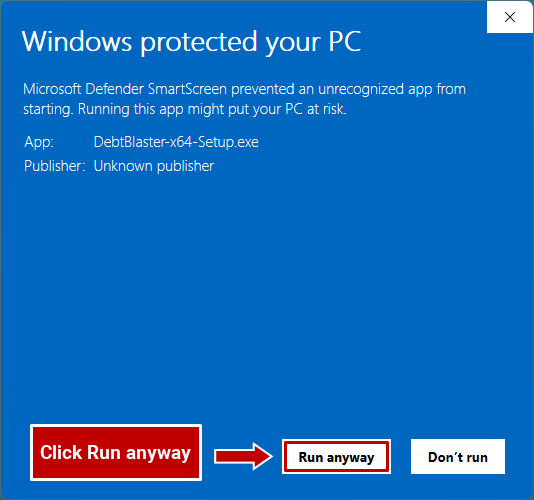
Then click Run anyway only if you recognize and trust the installer.
Confirm that you recognize the file name.
Confirm that you downloaded it from the official website or the purchase email you expected.
Click More info.
Check the app name and publisher, if shown.
Click Run anyway only if you trust the installer.
If you are downloading Debt Blaster, the app name should look like a Debt Blaster installer.
If the app name looks unrelated, strange, or unexpected, stop and contact us before running it.
If you do not see Run anyway, your computer may be controlled by
company, school, government, antivirus, or Windows security policy. Ask the person
who manages the computer for help.
6
If the installer downloaded but will not open
Open your Downloads folder.
Right-click the installer and choose Properties.
If you see an Unblock checkbox, check it and click OK.
Double-click the installer again.
If Windows asks for permission, choose Yes only if you trust the installer.
Not every computer shows an Unblock checkbox. If you do not see it, move on to the next step.
7
If this is a work, school, or government computer
Many managed computers block downloaded installers by policy. In that case, you may
not be able to download or install the file yourself.
Ask your IT department or computer administrator whether the software is allowed.
You may need administrator permission.
What not to do
Do not turn off antivirus protection just to install software.
Do not ignore a malware or virus warning.
Do not download the installer from a third-party software site unless the publisher specifically sent you there.
Do not rename a file to force it to run.
Do not run an installer that appeared unexpectedly.
Do not use a download link from an email that is not connected to an order you placed.
Still stuck?
If you are trying to download Debt Blaster and still need help, email us at
debtblaster@zilchworks.com.
We will help you figure out what is blocking the download.
Include as much of this information as you can:
Your browser: Edge, Chrome, Firefox, or another browser.
Your Windows version, if you know it.
The exact warning message.
A screenshot of the warning.
The website where you started the download.
Whether your download link came from a purchase email.
Whether this is your personal computer or a managed computer.